Starting Pipelines
Templates
To start a Pipeline, one need to first select a PipelineTemplates, defining the stages the Pipeline will consist of. The PipelineTemplates at ones disposal are part of the PipelineProjects one has imported (see here).
Selecting a Template will directly lead to the stage configuration.
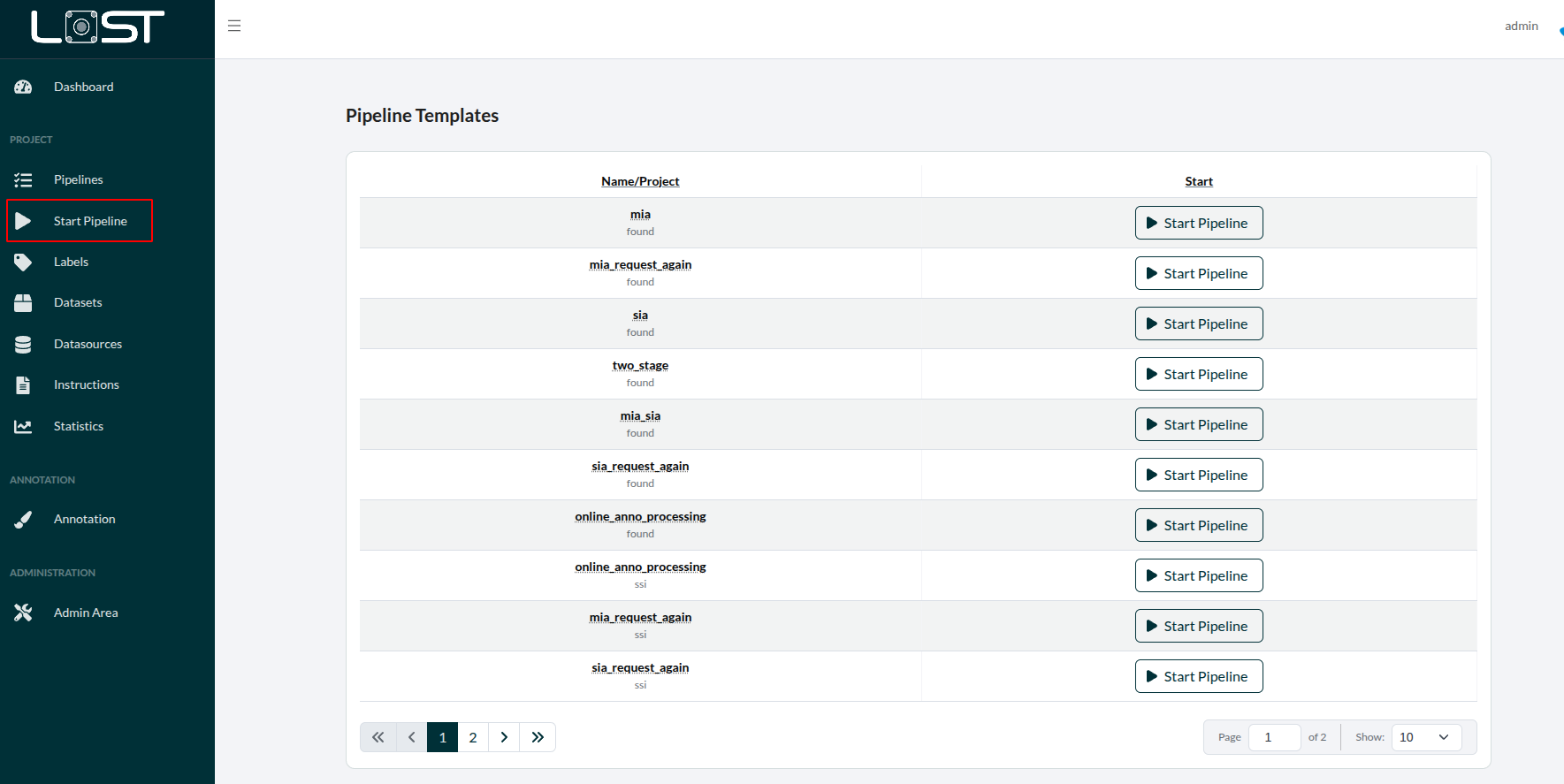 Figure 1: Table with the PipelineTemplates
Configuring the Stages
Most stages of a Pipeline need to be configured, before it can process ones data. one can see which stage still needs to be configured, by looking at the the header of the stage. If it still needs ones input, it will be yellow. Headers of fully configured stages are displayed in green instead.
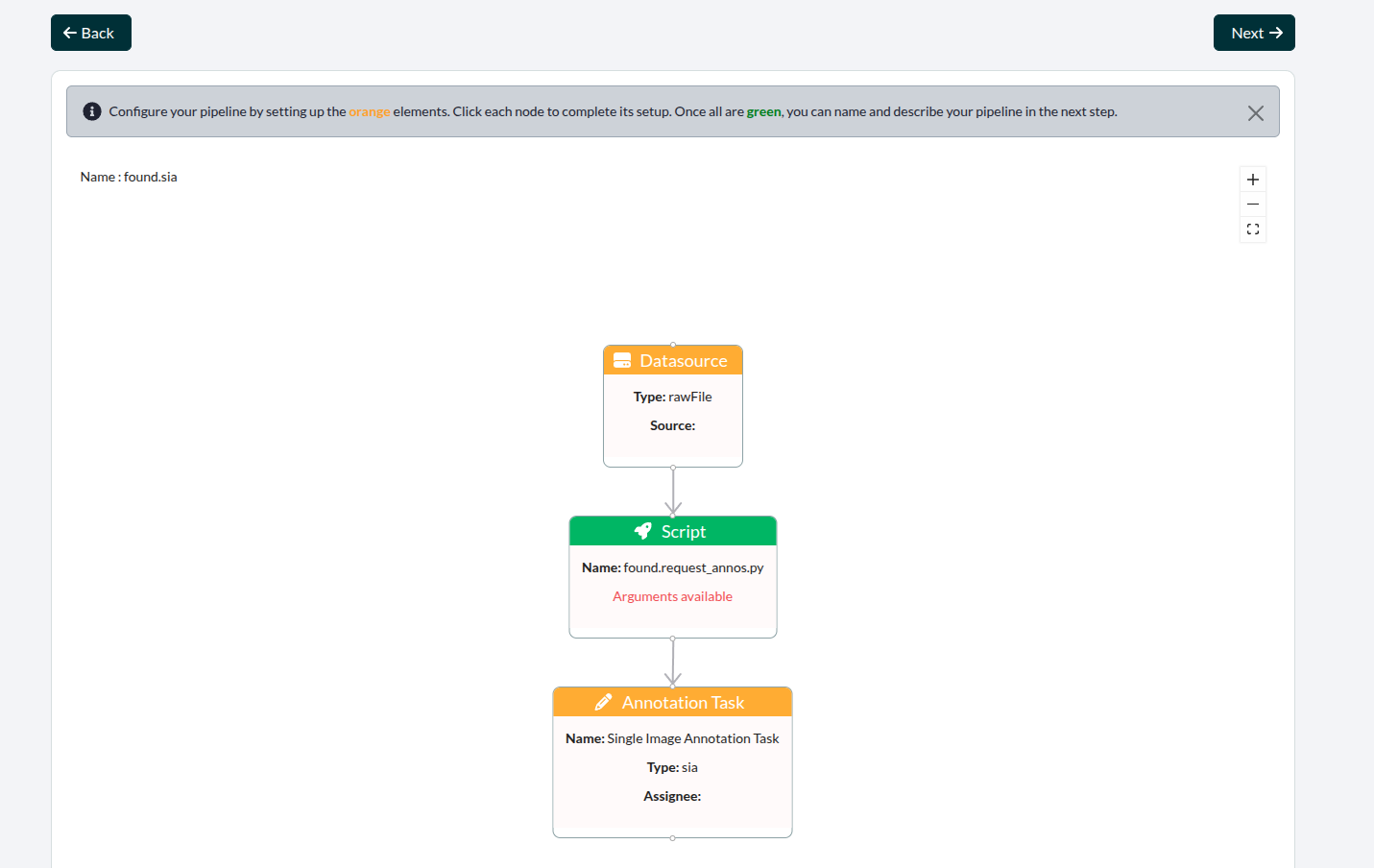 Figure 2: The stages of the standard SIA-Pipeline. The first and last stages are
not yet configured, while the middle one is.
Figure 2: The stages of the standard SIA-Pipeline. The first and last stages are
not yet configured, while the middle one is.
The most common elements, which need configuration, are the types "Datasource" and "Annotation Task". After having specified everyting there, one can continue by clicking the arrow on the upper right and giving the Pipeline a name an a description.
Selecting a DataSource
Typically the first stage of a Pipeline, is selecting the data to be processed by it. Upon clicking the stage, a window will open. There, the user can first select a general DataSource. The shown files and directories in the main part of the window, will be the content of the respective source. There, one can select the exact data for the Pipeline to process.
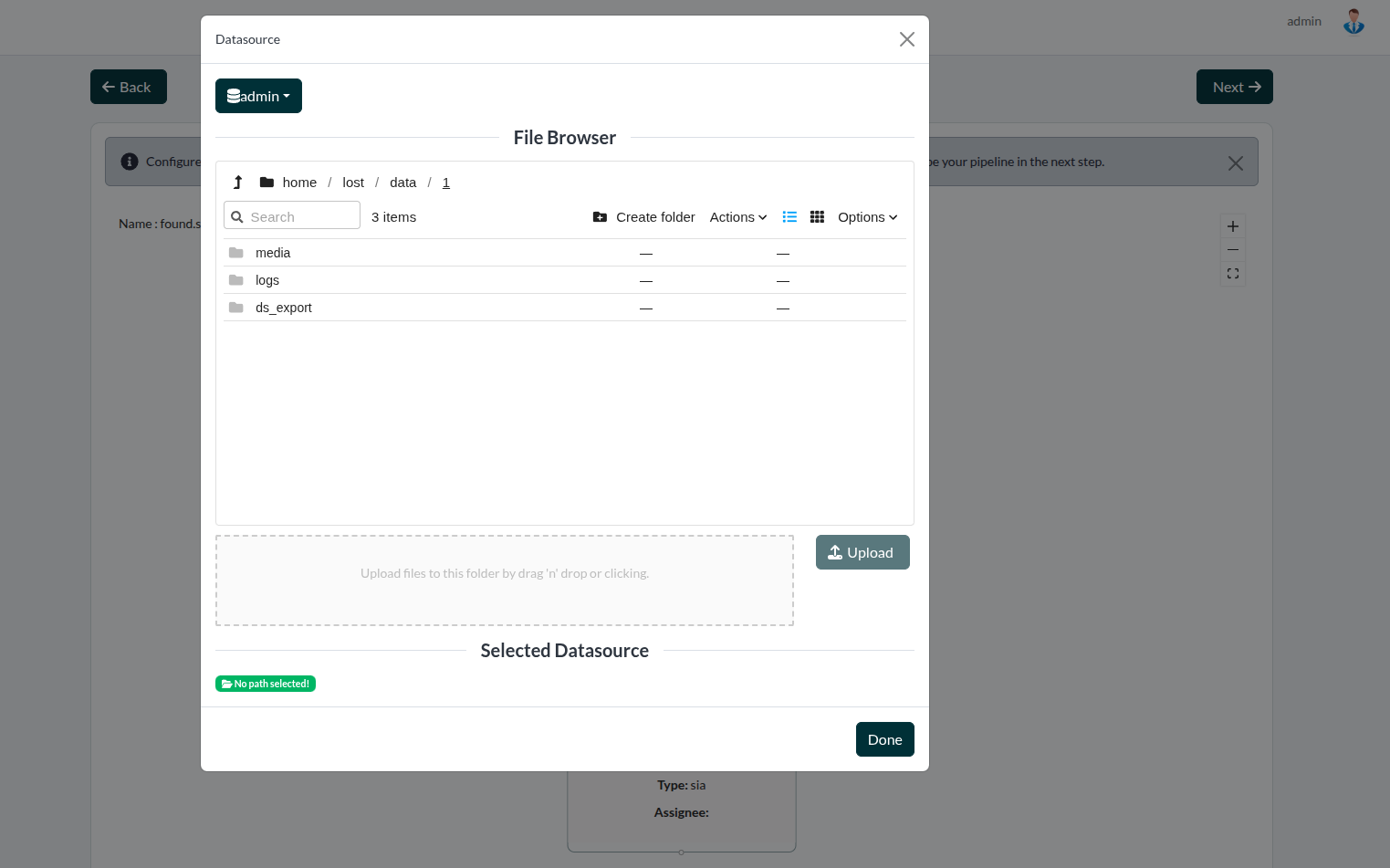 Figure 3: The file-browser with which to select a Datasource
For the standard SIA and MIA AnnotationTasks, the input should either be a directory of images or a .parquet-file, containing a LOSTDataset, specifying in its column "img_path" where the images to (re)annotate are.
Configuring AnnotationTasks
Configuring an AnnotationTask consists of 6 steps the user is guided through. These steps are:
-
Task Information
- Giving the AnnotationTask a Name and selecting premade Instructions (see here) for the annotators
-
User Selection
- Assigning either a User or a Group (consisting of Users) to work on the AnnotationTask. (Please note, that the AnnotationTask will only be visible to the assigned Users)
-
Label Tree Selection
- Selecting a LabelTree
-
Label Selection
- Selecting a parent Label from the LabelTree previously selected. All children of the selected node will be available as Labels in the AnnotationTask
-
Dataset
- The option to assign the AnnotationTask to a Dataset (see here)
-
Specific Configuration
- More options specific to the type of AnnotatonTask (SIA or MIA)
- SIA:
- Toggling which Annotation Types to allow
- Toggling which
- Specifying the minimum size an annotation (polygon or bbox) needs to have (in pixels)
- Optons for junking images, giving image labels or setting annotations to multilabel (making it possible to give them more than one label)
- Selecting an InferenceModel, giving predictions as suggestions for annotations
- MIA:
- Select whether annoations are image based or annotation bases
- Image based: Each image in the given directory or dataset will be in the Annotationtask
- Annotation based: Images are cropped to the size of existing annotations (with additional, specified context)
- Select whether annoations are image based or annotation bases
- SIA:
- More options specific to the type of AnnotatonTask (SIA or MIA)
Configuring Scripts
Specific arguments for the scripts can be input, when clicking on this kind of stage. For more specifics on such arguments and how to define them, see here.